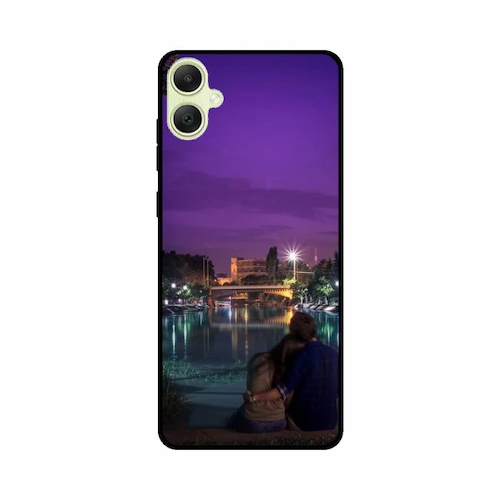
The Galaxy A05 is a flexible smartphone. It offers many customization options. Users can adjust their device to match their personal styles and preferences. From adjusting the home screen layout and choosing vibrant wallpapers to configuring sound settings and exploring accessibility features, the A05 empowers users to create a personalized experience.
Understanding the Galaxy A05 Customization Features
Overview of Customization Options
The Galaxy A05 is like a blank canvas waiting for your artistic touch. From changing your home screen layout to tweaking notification sounds, the customization options are plentiful and easily accessible. You can adjust everything from icons to themes, making your device truly yours, or at least more “you” than it was when it came out of the box!
Importance of Personalization
Personalizing your phone isn’t just about aesthetics; it’s about making your tech work for you. A customized device enhances your user experience, increases productivity, and can even boost your mood. Plus, who doesn’t love to showcase their unique style? After all, it’s 2023—your phone should reflect your personality, not scream “I just pulled this off the shelf!”
Customizing the Home Screen and Lock Screen
Changing Layout and Icons
Let’s dive into the home screen—your digital front yard! You can rearrange app icons, resize widgets, and even choose between a traditional grid or a fancy freeform layout! Want to make that cat meme app easier to find? Just drag and drop! And don’t forget to give those icons a facelift with some colorful packs from the store—because who wants boring, default icons?
Setting Up App Folders
App folders are like organizing your junk drawer but way more satisfying. Group similar apps together—like all your social media in one place, or productivity tools in another. Tidy up that home screen so it doesn’t look like it threw up apps everywhere. Plus, you’ll save precious seconds when searching for that elusive photo-editing app (you know, the one you downloaded three months ago and promptly forgot about).
Lock Screen Options and Security Features
The lock screen is your first line of defense against nosy friends and curious cats. You can customize the clock style, add widgets for quick access, and pick a dynamic wallpaper that changes when you wake your phone. And don’t forget the security features! Whether it’s fingerprint, face unlock, or the trusty PIN, you can rest easy knowing your secrets are safe—unless you forget your password, in which case good luck!
Personalizing Themes and Wallpapers
Exploring Pre-installed Themes
Your Galaxy A05 comes pre-loaded with a variety of themes that can change the entire look and feel of your device instantly. From sleek and minimal to vibrant and funky, there’s something for everyone. Take a few minutes to explore these options—the perfect theme is just a click away, waiting to elevate your phone’s aesthetic to new heights.
Downloading Custom Themes from the Store
Feeling adventurous? The Theme Store is a treasure trove of custom creations. Browse through thousands of themes made by talented designers and say goodbye to a bland interface! Just make sure to check the reviews before diving in—some themes may look cooler than they actually function. Your phone’s usability should shine as bright as those sparkly unicorn graphics!
Choosing and Setting Wallpapers
Now, let’s talk wallpapers. This is where you can express yourself without uttering a word! Whether you want to display your latest vacation pic or a stunning landscape, the choice is yours. You can even set different wallpapers for the home and lock screens to keep things fresh. Just remember, while choosing that majestic mountain view, your phone might just cry for a bit more battery life!
Configuring Sound and Notification Settings
Adjusting Ringtones and Notification Sounds
When it comes to sound, don’t settle for the stock ringtone that everyone and their grandmother has. Dive into the settings and pick a ringtone that makes you smile every time you get a call. And hey, while you’re at it, customize your notification sounds too! Choose fun or funky alerts that match your mood—after all, you want your phone to reflect your unique vibe, even in the sound department!
Managing Vibration Patterns
Vibration patterns can be just as personal as your ringtones. You can set different vibration styles for calls, texts, or even specific apps. Want that important message from your boss to buzz like it’s a marching band? You got it! Mixing up vibrations adds a quirky touch to your notifications—but maybe save the random disco vibes for when you’re home alone.
Setting Up Do Not Disturb Mode
Let’s face it; sometimes you just need peace and quiet. Enter the Do Not Disturb mode! This nifty feature lets you silence those pesky notifications when you’re trying to focus, relax, or catch up on your favorite show. You can customize who can break through the silence, ensuring that only the truly important folks can interrupt your zen—like that specific friend who always seems to need your advice on what to order for dinner.
Adjusting Display Settings for a Unique Look
Changing Font Styles and Sizes
Want to jazz up your messaging? Dive into the font settings to change styles and sizes. You can go from “default digital” to “fancy script” in a click! Fonts not only add character but also help you find that sweet spot between readability and personality—because who doesn’t want their texts to look spiffy?
Enabling Dark Mode
If you’re someone who likes their screen like their coffee—dark—then Dark Mode is calling your name. This setting not only looks sleek with an elegant vibe but also helps save battery life and reduce eye strain. Plus, it gives your Galaxy A05 that mysterious aura of someone in-the-know.
Customizing Screen Brightness and Color Temperature
Adjusting screen brightness is like putting on sunglasses—sometimes you need it bright and sunny, and other times, a softer glow is just right. Tweak the color temperature to warm things up for cozy late-night scrolling or cool it down if you’re on a work mission. With the right adjustments, you can create the perfect ambiance for any occasion.
Utilizing Widgets for Enhanced Functionality
Adding and Removing Widgets
Widgets are like the decorative throw pillows on your couch—functional and aesthetically pleasing! Simply long-press on an empty space on your home screen to add them. Feel free to declutter your digital space by removing any widgets that no longer spark joy (or provide utility).
Customizing Widget Sizes and Positions
Once you’ve added your favorite widgets, it’s time to play interior designer. Resize and reposition them to fit your style—a little larger for the weather widget if you want to be dramatic about the forecast! Mixing and matching sizes can enhance your home screen’s look while ensuring everything is within quick reach.
Popular Widgets for the Galaxy A05
Looking for inspiration? Check out the calendar widget for planning your busy life, or a music widget to keep your tunes at your fingertips. Don’t forget about the news widget to stay updated without having to dig through apps—because who doesn’t love multitasking while sipping coffee?
Accessibility Options for Personalized User Experience
Enabling Voice Assistance
Last minute grocery shopping or texting while on the go? Enable voice assistance to keep your hands free and your productivity on point. Just give your Galaxy A05 a little command, and voilà! It’s like having your very own personal assistant who never forgets your coffee order.
Adjusting Text and Display Settings for Readability
Customizing text size and display settings can turn the tiniest font into something readable for even the busiest of eyes. Adjust the settings to your liking so you can wallow-watch shows or read articles without squinting. Don’t let the fine print be your nemesis!
Customizing Touch and Interaction Controls
Make your phone truly yours by customizing touch sensitivity and interaction controls. You can make your device more responsive or set it up to exclude accidental taps—great for those clumsy moments we all have! With just a few tweaks, you can have a smoother and more personalized user experience.
Apps and Tools for Further Customization
Recommended Apps for Enhanced Personalization
There’s a treasure trove of apps ready to elevate your customization game. From icon packs that give your home screen a facelift to wallpaper apps that transform your view, the possibilities are endless. Dive into the app store to discover tools that match your unique style!
Using Third-party Launchers
Feeling adventurous? Installing a third-party launcher can completely change the way you interact with your Galaxy A05. Customize your home screen beyond the usual limits with features like gestures and different layouts. It’s like giving your phone a whole new wardrobe without the hassle of shopping.
Integrating Smart Home Devices
Make your Galaxy A05 the central hub of your smart home. Easily integrate devices like lights, thermostats, and security cameras right from your phone. With this setup, you’ll feel like you’re living in the future—control everything with just a tap, or through voice commands! Now, that’s some serious tech magic.In conclusion, the Galaxy A05 offers a wide range of customization options that enable users to personalize their devices to reflect their unique tastes and preferences. By exploring the various features outlined in this article, you can create a smartphone experience that is not only functional but also distinctly your own. Embrace the opportunities for personalization and enjoy making your Galaxy A05 truly yours.
Frequently Asked Questions
Can I change the font style on my Galaxy A05?
Yes, you can change the font style on your Galaxy A05 by going to the Display settings and selecting the Font style option, where you can choose from pre-installed fonts or download new ones.
How do I reset my customization settings on the Galaxy A05?
To reset your customization settings, you can navigate to Settings > General Management > Reset and choose the option to reset settings, which will revert your customization choices while keeping your data intact.
Are there third-party apps available for further customization?
Yes, there are several third-party apps available on the Google Play Store that provide additional customization options, such as custom launchers, icon packs, and theme creators specifically designed for the Galaxy A05.
How can I add widgets to my home screen?
To add widgets to your home screen, long-press on an empty space on the home screen, select the Widgets option, then browse through the available widgets and drag your desired one to your home screen.
About the Author