What Is Actually Happening?
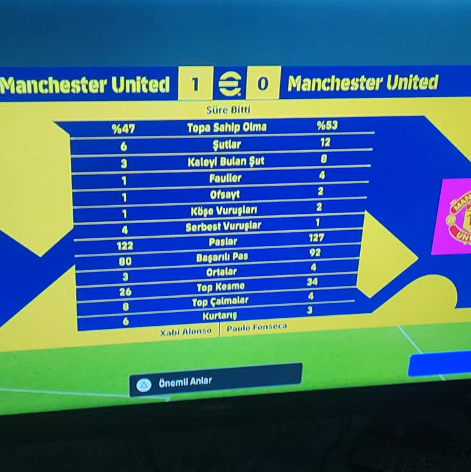
Recent updates introduced a bug that makes eFootball run in severe slow motion during matches. Sometimes the game just stutters instead. Either way, the menus stay smooth while the actual gameplay drags.
Not everyone hits this bug. The problem mostly hits PC players who run the game through Steam. It hits hardest on systems with newer Intel processors that have both Performance cores (P-cores) and Efficient cores (E-cores). Players who run the Microsoft Store version report far fewer problems.

I should be honest here. Konami hasn’t confirmed an official cause. Everything below comes from community reports, so results will vary from PC to PC. Still, these fixes have helped a lot of players, and they cost nothing to try.
The Primary eFootball Running in Slow Motion Fix: Disable Hyper-Threading in BIOS
Most players report that this fix works best. It sounds scary, but it’s pretty simple once you see the steps.
Why This Fix Works
Many game engines struggle to spread their work across P-cores and E-cores. The new update seems to make this worse. The game splits tasks across threads, and the timing goes off. Match logic then runs slower than the menus.
Hyper-Threading lets each physical core handle two threads at once. When you turn it off, your CPU has fewer threads to juggle. The game then spreads its work more evenly, and the slow motion often disappears.
Step-by-Step Guide
- Restart your PC.
- Press the BIOS key as soon as the screen lights up. Most boards use
F2,DEL, orF12. Check your motherboard manual if none of those work. - Open the Advanced CPU Settings. Some boards call this menu Processor Configuration.
- Find the setting called Hyper-Threading. Some boards label it Intel Hyper-Threading Technology.
- Change it to Disabled.
- Save your changes and exit the BIOS.
- Let Windows boot, then launch eFootball through Steam.
Load into a match and test it. Most players who try this fix notice the speed return to normal right away.
One Important Warning
Disabling Hyper-Threading affects your whole PC, not just eFootball. Programs that use many threads, like video editors or 3D rendering tools, may run slower. You can reverse this fix anytime. Just return to the BIOS and switch the setting back to Enabled. If you use heavy software often, you can flip the setting only when you want to play.
Alternative Workarounds to Fix eFootball Running in Slow Motion If You Skip the BIOS
Maybe you don’t want to touch your BIOS. That’s fair. Plenty of players try these community workarounds first.
Switch to the Microsoft Store Version
The bug appears to affect the Steam build most. The Microsoft Store version runs fine for many players. You can install eFootball through the Microsoft Store or the Xbox App for Windows.
This fix takes more effort than the others. You need to download the game again, and you may need to link your Konami ID. Still, it works well if you want a permanent solution without changing any hardware settings.
Turn On Efficiency Mode in Task Manager
This trick surprised me, but players keep recommending it. It changes how Windows schedules the game’s threads. Follow these steps:
- Launch eFootball through Steam.
- Press
Ctrl + Shift + Escto open Task Manager. - Click the Details tab.
- Find
eFootball.exein the list. - Right-click the process.
- Select Efficiency Mode.
Go back to the game and check the speed. This setting resets every time you close the game. You need to repeat these steps each time you play. It’s a bit annoying, but it works for some players.
Lower Your Resolution and Use Windowed Mode
Next, try changing your display settings. Open eFootball’s settings and switch to Windowed Mode. Then lower the resolution to something small, like 1280×720.
This change reduces the load on your system. It can ease the thread bottleneck that causes the slow motion. The game won’t look as sharp at first. You can raise the resolution step by step afterward. Stop when the slow motion returns, then go back one step.
READ ALSO: English League Selection Guardians 7 Sep ’26 Ryan Sessegnon
Ryan Sessegnon acts as a dynamic offensive wingback. Standing 178 centimeters tall and weighing 71 kilograms, he brings speed, mobility, and attacking flair to the left side of the pitch. At 26 years old, his standard card carries a base rating of 79 at Left Back (LB). Managers who train him properly can unlock his versatility across multiple positions on the pitch.
Plug in Your Controller with a USB Cable
This one sounds random, but some players swear by it. Bluetooth controllers sometimes cause input polling conflicts. Those conflicts can trigger speed and frame rate bugs.
Swap your Bluetooth connection for a wired USB cable. Then launch the game again. Even if it doesn’t fix the slow motion, a wired controller gives you lower input lag. That’s a nice bonus for competitive matches.
eFootball Running in Slow Motion; Which Fix Should You Try First?
Here’s how I’d order them:
- Start with Efficiency Mode. It takes thirty seconds and changes nothing permanent.
- Try the wired controller and the lower resolution next. Both are quick.
- Switch to the Microsoft Store version if you want a clean, lasting fix.
- Disable Hyper-Threading if nothing else works, or if you want the fix players trust most.
You can also combine several fixes. Nothing here conflicts with anything else.
A Few Extra Tips
Keep your graphics drivers up to date. Old drivers cause plenty of odd performance issues. Close background apps before you play, especially browsers with many tabs. Check that Windows is set to its High Performance power plan. Each of these small steps helps your game run smoother.
If your game still runs in slow motion after all this, verify your game files in Steam. Right-click eFootball in your library. Choose Properties, then Installed Files, then Verify Integrity of Game Files. Steam will repair any damaged files it finds.
eFootball Running in Slow Motion? Report the Bug to Konami
Here’s something every affected player should do. Submit a support ticket to Konami. Describe the slow-motion problem and list your CPU model. Mention that you play through Steam. The more tickets Konami receives, the faster the team will notice the issue.
An official hotfix would solve this problem for everyone. Players wouldn’t need BIOS changes or workarounds. They could just update the game and play. Your report helps push that fix along.
Final Thoughts
Slow motion in eFootball feels awful, especially right after an update. The good news is that you have options. Disabling Hyper-Threading in the BIOS stands out as the fix players trust most. The other workarounds give you easy backup plans if you don’t want to touch your BIOS.
Try them one at a time. Test each fix in a real match. Then keep whatever works for you. And if one of these fixes saves your game night, drop a comment and tell me which one it was. Other players will thank you for it.
About the Author